Who hasn’t had them, users can’t sign in to Microsoft365. Most of the times it’s Outlook that’s not signing in or asking for a password every time you start the client and other times it’s the Word or Excel application that is giving the error message.
In my opinion this happens too much every day so I had to write something about it. I’ll just start off with a couple of issues I remembered and post the corresponding solution. I will update these errors and add new ones as we go. (And no I will not ask you to run an sfc /scannow on your computer.)
Lets get started with the fist error message: “Sorry another account from your organization is already signed in on this computer”.
I can explain the message but that seems redundant as it literally says it in the message. So lets try the following steps:
- Open up Word, go to Account and sign out the user account.
- Delete all the Office related credentials in the Credential Manager under Windows Credentials.
- From Settings -> Account -> Access Work or School disconnect the user account if this is another one that you want to use.
- (If the error comes from Outlook) Create a new profile.
- Open up Word or Outlook again and try to log back in as the user.
If the above options doesn’t work for you you’re probably better off creating a new profile for the user.
Onward to the next issue! “Mailbox continuously asking for login and password when starting Outlook client“.
Side Note! This could also be the cause of the error message above when you have another user signed into the office applications.
- First check if all user rights have been correctly assigned to the Shared Mailbox in the Admin Center.
- Try creating an new profile through Control Panel -> Mail -> Profiles.
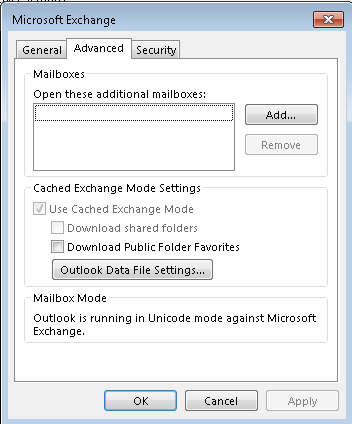
- Add the Shared Mailbox to the Personal Account within the Outlook client.
Okay, lets go to the best error message so far “Something went wrong” when starting an Office app. This one kinda means that the Office application has broken down and the best way to fix it is either rebooting your system or fixing the Office application on your device.
If a reboot doesn’t work you can try to do a quick repair of the Office application or a reinstall via portal.office.com. Quick repair can be done via Apps -> Installed Apps -> Office and clicking Uninstall or Repair.
Lets also add the message “The set of folders cannot be opened”. 9 out of 10 times this is resolved by creating a new profile through Control Panel -> Mail -> Profiles. In that one case it is also possible that you have to remove the profiles within the Registry, the location where you can delete these is:
Computer\HKEY_CURRENT_USER\SOFTWARE\Microsoft\Office\16.0\Outlook\Profiles
After deletion you can create a new profile the way you’re used to and all should work fine again.
If you liked this post, learned some new things or this article helped you out please think about giving a one time donation at the Donation Page to keep the site online!
 Kiwi Place
Leave a comment