We have all been there, trying to log in to the vCenter with the root password, probably for a well deserved update of the appliance, while the login the one time you need it lets you down. Perhaps you lost or never saved the password in the first place or the password expired because how many times do you actually use it?
Luckily the reset of the root password for a vCenter appliance is straightforward and easy to do. There are actually two different ways of resetting the root password dependable on which version you use. If you use vCenter Server Appliance 6.7 U1 or later you can try the following VMware KB Article which is probably the easier way. Though the method described below is possible at all vCenter versions.
First thing to do is instead of connecting to the vCenter is connecting to the host the vCenter appliance is running on. There you can take a Snapshot of your vCenter appliance if you like.
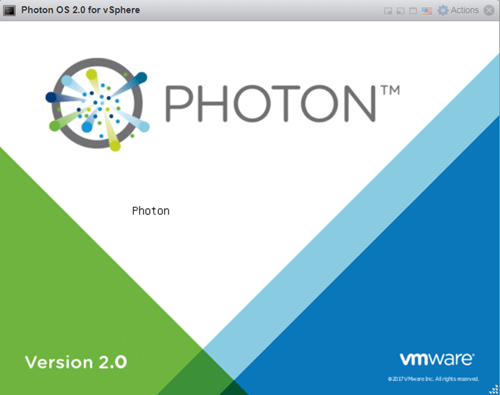
To reset the root password we have to reboot the appliance and press “e” when the splash screen appears (Big Photon screen, you can’t miss it)
When arriving in the GNU GRUB (GNU GRand Unified Bootloader) of the appliance you have to add rw init=/bin/bash to the end of the first line.
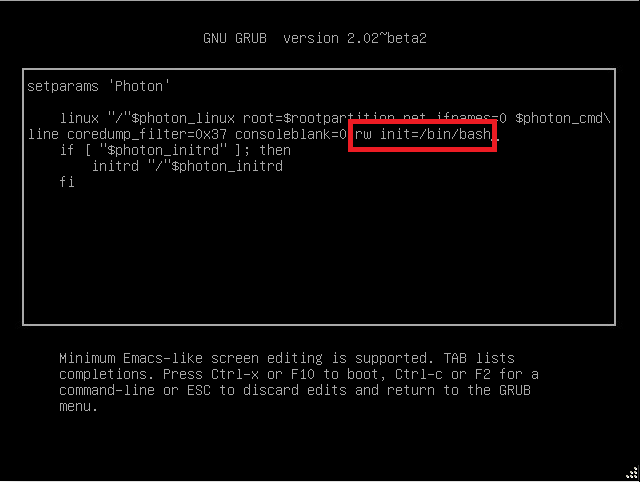
Side Note! rw init=/bin/bash is a kernel feature of Linux and allows you to do maintenance or change a forgotten password. You’re telling the Linux kernel to run /bin/bash first.
Now press F10 to continue booting and type mount -o remount,rw / to mount the Photon system as read-write. At the shell you can type passwd to change the root password.
To unmount the the root filesystem simply type umount / and use reboot -f to restart your vCenter Appliance with the new root password.
Now all you have to do is wait for all services within vCenter to boot and your good to go! Try logging in to the <vcenter_fqdn>:5480 page in the browser. There you can also change the Root password to never expire again!
Everything you see here is also available in this VMware KB Article.
If you liked this post, learned some new things or this article helped you out please think about giving a one time donation at the Donation Page to keep the site online!
 Kiwi Place
Leave a comment